
Castle APK vs MX Player: Quick Answer
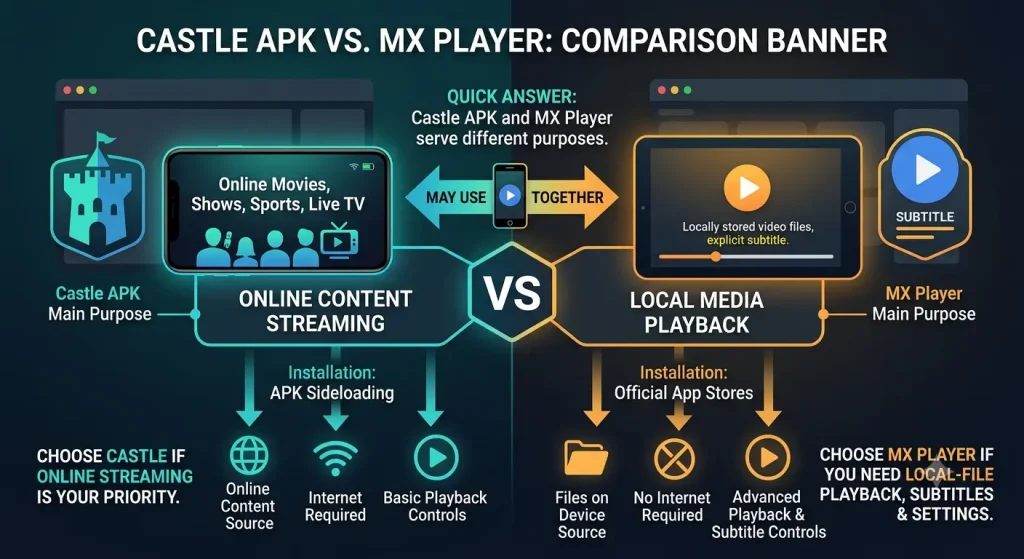
Castle APK and MX Player serve different purposes. Castle is mainly presented as an app for accessing online movies, shows, live TV, and sports, while MX Player is better suited to playing video and audio files stored on your device. Choose Castle if online streaming is your priority. Choose MX Player if you need local-file playback, subtitle controls, and playback settings. You may also use both together when a Castle version supports MX Player as an external player.
| Comparison Point | Castle APK | MX Player |
|---|---|---|
| Main purpose | Online content streaming | Local media playback |
| Best for | Movies, shows, sports, and live channels | Videos and audio files stored on a device |
| Installation | Usually requires APK sideloading | Normally available through official app stores |
| Offline use | Download support depends on the Castle version | Plays locally stored files without internet |
| Playback controls | Basic built-in player features may vary | More focused playback, subtitle, and gesture controls |
| Can work together? | May send supported streams to MX Player | Can act as Castle’s external player |
| Recommended choice | For users focused on online entertainment | For users focused on reliable media playback |
What Is Castle APK?
Castle APK is an Android entertainment app designed for online streaming. It is mainly used to watch movies, TV shows, web series, live channels, and sports from one interface.
The app is usually installed through an APK file rather than a standard app-store listing. Its main purpose is content streaming, while features such as offline downloads, external-player support, pricing, and registration may vary between versions.
What Is MX Player?
MX Player is an Android video and music player designed mainly for local media playback. It can play video and audio files stored on a phone, tablet, or other supported device. Its playback tools include hardware acceleration, multi-core decoding, subtitle gestures, and support for formats such as SRT, SSA/ASS, SUB, IDX, and WebVTT.
The free version is available through Google Play and includes ads and in-app purchases. MX Player Pro has existed as a paid alternative, but its current availability should be checked in the user’s regional app store. In supported markets, the MX Player brand may also provide OTT streaming, while local-file playback remains its main role in this comparison.
Castle vs MX Player: Core Differences
Castle and MX Player do not serve the same primary purpose. Castle is designed to help users find and stream online entertainment, while MX Player focuses on playing video and audio files stored on a device. Castle depends more on internet access and external content sources. MX Player can work fully offline when the required media files are already available on the phone or tablet.
| Attribute | Castle APK | MX Player |
|---|---|---|
| Primary purpose | Streaming online entertainment | Playing local video and audio files |
| Content source | Online movies, shows, sports, and channels | Files stored on the device |
| Content catalogue | May provide an in-app streaming library | Does not require a catalogue for local playback |
| Installation | Commonly installed by sideloading an APK | Normally available through an official app store |
| Internet requirement | Usually required for streaming | Not required for local files |
| Offline use | May offer downloads, depending on the version | Plays downloaded and transferred files offline |
| Account requirement | May vary between Castle versions | Not normally required for local playback |
| Advertising | May vary by package and source | The free version may display ads |
| Updates | Depend on the APK source used | Normally delivered through the official store |
| Main user outcome | Access online entertainment from one interface | Control and play personal media files |
Choose Castle when your main goal is to explore online content. Choose MX Player when you already have media files and need stronger playback, subtitle, and decoder controls.
Features, Playback and Subtitle Comparison
Castle and MX Player handle video in different ways. Castle focuses on online streams, so picture quality depends on the available stream, internet speed, and server performance. MX Player focuses on media playback and gives users more control over files stored on their device.
| Feature | Castle APK | MX Player |
|---|---|---|
| Video quality | Depends on the stream and internet connection | Depends on the source file, screen, and device decoder |
| MKV, MP4, AVI and WebM | Support has not been reliably verified | Designed for local media, but individual files may fail if their video or audio codec is unsupported |
| H.264, HEVC, VP9 and AV1 | Codec support is unverified | Playback depends on the app version and the device’s hardware or software decoder |
| Hardware acceleration | Not reliably confirmed | The official listing includes hardware acceleration through its HW+ decoder |
| Subtitles | Availability may depend on the selected stream | Supports subtitle formats including SRT, SSA/ASS, SUB/IDX and WebVTT |
| Audio-track selection | Depends on the content and Castle build | May allow track selection when the media file contains multiple supported audio streams |
| Gesture controls | May vary by version | Includes gestures for zooming and adjusting subtitle position and size |
| Picture-in-picture | Not verified | Availability may depend on the Android version and current app build |
| Chromecast | Frequently claimed by Castle pages but not verified for every build | Support should be checked in the current regional version |
| Offline playback | May require downloading content inside the app | Plays compatible files already stored on the device without an internet connection |
MX Player is the stronger option for users who need subtitle controls, decoder options, and local-file playback. Castle is more relevant when the main goal is finding and streaming online content.
Can Castle Use MX Player as an External Player?
Some Castle builds may allow users to open a selected stream in MX Player instead of using Castle’s built-in player. In this setup, Castle finds the content and sends a playback request to MX Player. MX Player then handles the video controls, decoding, subtitles, and audio options.
When Android detects more than one compatible player, it may display an Open with menu. The user can select MX Player for one session or make it the default option. Android uses intents to pass supported content from one app to another.
External-player support is version-dependent. MX Player may not appear when:
- The Castle build does not support external playback.
- MX Player is not installed or enabled.
- The stream uses an unsupported link or protocol.
- The playback URL has expired.
- The content requires DRM that cannot be transferred to another player.
- Android has already assigned a different default player.
VLC can be used as another external player option when Castle offers it. MX Player may suit users who prefer detailed subtitle and playback controls, while VLC can be useful for testing whether a playback problem is specific to one player. Neither app can repair an expired, blocked, or inaccessible stream.
Performance and Device Compatibility
Castle and MX Player cannot be compared fairly through unverified speed or battery claims. App launch time, RAM use, heat, and battery drain depend on the device, Android version, media quality, network, and exact app build.
Castle relies mainly on online streams. Its performance can change with internet speed, server load, advertisements, and stream quality. Slow servers may cause buffering even when the phone is powerful. MX Player plays local files, so it avoids network buffering, but high-resolution or unsupported files may still stutter when the device cannot decode them efficiently.
| Performance Factor | Castle APK | MX Player |
|---|---|---|
| App launch time | Depends on the APK build, network requests, and ads | Depends mainly on the device and media-library size |
| RAM usage | May increase while loading catalogues, streams, and advertisements | Changes with file resolution, codec, subtitles, and decoder mode |
| Battery consumption | Streaming uses the screen, network, and video decoder | Local playback avoids network use but still consumes power for decoding |
| Device temperature | May rise during long HD streams or downloads | May rise with high-bitrate, HEVC, AV1, or software-decoded files |
| Buffering | Depends on internet speed and the streaming server | Local files do not buffer because of internet speed |
| Frame drops | Can result from a weak stream, device limits, or decoder problems | Usually linked to file bitrate, codec support, or decoder settings |
| Storage footprint | Includes the APK, cache, advertisements, and downloaded content | Includes the app, subtitles, thumbnails, and locally stored media |
| Budget-phone performance | May struggle with heavy pages, ads, or high-quality streams | Often more predictable for compatible local files at suitable resolutions |
MX Player’s official Google Play listing describes hardware acceleration and multi-core decoding, but actual performance still depends on the phone’s processor and supported codecs.
Device Compatibility
Android phones and tablets: Both apps are mainly associated with Android. Castle is commonly installed through an APK, while MX Player is available through Google Play for supported phones and tablets.
Android TV: Installing a phone APK does not guarantee a proper television experience. The app must support remote controls, landscape layouts, and TV navigation. MX Player’s Google Play listing includes television support, while Castle compatibility depends on the exact package.
Fire TV: Castle or MX Player may work only when the selected package supports the device’s Android-based environment, processor architecture, and remote controls. Sideloading alone does not confirm compatibility.
Other Smart TVs: A television described as “smart” cannot automatically install Android APK files. Compatibility depends on the operating system and the supported app store.
Windows computers: An Android emulator may run Castle or MX Player on Windows, but this is not the same as a native Windows application. Performance depends on the emulator, available RAM, graphics support, and processor.
iPhone and iPad: Android APK files cannot be installed directly on iOS or iPadOS. Castle does not have a clearly verified native iPhone or iPad version. Users should not treat jailbreak instructions or renamed APK files as normal iOS support.
For budget phones, MX Player is usually the more predictable option for compatible local files. Castle performance is harder to judge because it also depends on external streaming servers, network stability, and the exact APK version.
Versions, Download Sources, Safety, and Legality
Castle APK does not have one clearly verified version across the reviewed download pages. Different sites list versions such as 2.0.5, 2.0.7, and 2.12, while reported file sizes range from about 17 MB to more than 60 MB. These differences may come from older releases, device-specific packages, modified files, or unrelated apps using the Castle name.
A version number or filename alone cannot confirm that an APK is authentic. Before installing, check the package ID, developer identity, signing certificate, file size, and SHA-256 checksum. Future updates should use the same package ID and signing certificate. An unexpected signature change may mean the file was rebuilt or modified by another party.
Official Source and MOD APKs
The reviewed pages do not establish one verified official Castle developer or download source. A Castle-branded domain should not automatically be treated as official.
A standard APK is intended to contain the original application package. A MOD APK has been altered to remove ads, bypass payments, or unlock restricted features. Modified packages carry additional risk because users cannot easily confirm what else was changed. They may also violate software licences or content-access rules.
Permissions and Google Play Protect
Review every permission before opening the app. Storage or media access may support downloads, but permissions such as microphone, phone state, accessibility access, screen overlays, or installing other applications require stronger justification.
Google Play Protect can scan sideloaded applications and warn about known threats. However, a clean scan does not prove that an APK is completely safe, private, or legally authorised.
Malware, Privacy, and Copyright Risks
These risks are related but should not be confused:
- Malware risk concerns device security. A harmful APK may install unwanted code, display aggressive ads, redirect users, or damage stored data.
- Privacy risk concerns personal information. An app may collect device identifiers, usage activity, account details, or other data through unnecessary permissions.
- Copyright risk concerns the rights to movies, shows, channels, and sports streams. An APK can be free from malware while still providing content without proper permission.
Streaming and copyright rules vary by country. Users should check local laws and prefer services that clearly identify their publisher, privacy policy, content rights, and update source.
Until Castle’s developer, package identity, signature, and official distribution channel can be verified, it should not be described as completely safe, official, or the latest version.
Installation and Troubleshooting
MX Player and Castle use different installation methods. MX Player should be installed from its verified Google Play listing when available. Castle is commonly distributed as an APK, so users must check the file source and package details before sideloading it.
How to Install MX Player
- Open the Google Play Store.
- Search for MX Player.
- Confirm that the listing shows the expected app name and verified publisher.
- Tap Install.
- Review the requested permissions before opening the app.
The current Google Play listing provides the publisher, update history, permissions, and data-safety information, making it easier to verify than an unidentified APK file.
How to Sideload Castle APK on Android
- Download the Castle APK only after checking its source, package ID, version, file size, signature, and checksum.
- Open the APK through the browser or file manager used to download it.
- When Android blocks the installation, open the prompt to allow installations from that specific source.
- Return to the APK and tap Install.
- Open Android’s app information page and confirm the installed package, version, permissions, and storage use.
- Remove the browser or file manager’s permission to install unknown apps after installation.
Keep Google Play Protect enabled. It can scan sideloaded applications and warn about known harmful behaviour, although a clean result does not guarantee that an APK is safe or private.
Common Installation and Playback Problems
Castle APK Will Not Install
Problem: Android displays “App not installed,” “Package appears invalid,” or a similar message.
Probable cause: The APK may be corrupted, incompatible with the Android version or processor, or signed differently from an existing installation.
Diagnostic check: Confirm the Android requirement, package architecture, file size, and whether another Castle package is already installed.
Safest solution: Download the file again from the same verified source. Do not delete an existing version until important app data has been backed up.
The App Crashes or Closes
Problem: Castle or MX Player closes during launch or playback.
Probable cause: The app may have corrupted cache files, insufficient memory, an incompatible update, or unsupported media.
Diagnostic check: Restart the device, close background apps, and test another video or stream.
Safest solution: Clear the app cache first. Clear app data or reinstall only when necessary because these actions may remove settings, downloads, or login information.
Video Keeps Buffering
Problem: An online video pauses repeatedly.
Probable cause: The internet connection may be unstable, the stream server may be overloaded, or the selected quality may be too high.
Diagnostic check: Test another stream, lower the resolution, and compare Wi-Fi with mobile data.
Safest solution: Use a lower quality or try again later. Changing the player will not fix a slow or unavailable streaming server.
The Screen Is Black
Problem: Audio plays, but no picture appears.
Probable cause: The video codec, decoder mode, hardware acceleration, or stream format may not work correctly.
Diagnostic check: Try another video and switch between the available hardware and software decoder settings in MX Player.
Safest solution: Use a supported decoder or another trusted player. Avoid installing random codec packages from unverified websites.
Audio or Video Codec Is Unsupported
Problem: MX Player shows an unsupported audio or video message.
Probable cause: The device or app cannot decode the file’s codec, even if the file uses a common container such as MKV or MP4.
Diagnostic check: Check the actual video and audio codecs rather than only the filename extension.
Safest solution: Try another decoder mode or convert the file into a supported format. Do not assume every MKV, MP4, AVI, or WebM file uses the same codec.
Subtitles Are Out of Sync
Problem: Subtitle text appears before or after the spoken dialogue.
Probable cause: The subtitle timing may not match the video release, or seeking may have changed the delay.
Diagnostic check: Test the subtitle-delay controls and confirm that the subtitle file matches the exact video.
Safest solution: Adjust the subtitle timing or use a matching subtitle file. Reinstalling the app is rarely necessary.
MX Player Does Not Appear in Castle
Problem: Castle does not show MX Player in its external-player options.
Probable cause: The Castle version may not support external playback, Android may have another default player, or the stream may use an unsupported or protected format.
Diagnostic check: Confirm that MX Player is installed and look for Open with, Play externally, or Choose player inside Castle.
Safest solution: Clear the current default-player setting or test VLC. If no external-player option exists, that Castle build may not support the feature.
Downloaded Videos Disappear
Problem: A Castle download cannot be found or played after closing the app.
Probable cause: The video may have been stored as a temporary cache instead of a normal media file.
Diagnostic check: Turn off the internet, inspect the app’s download section, and check the selected storage folder.
Safest solution: Keep downloads inside the app when they are encrypted or cache-based. Avoid third-party tools that claim to extract protected files.
Castle Login Does Not Work
Problem: The app rejects login details, fails to send a code, or remains on the loading screen.
Probable cause: The service may be unavailable, the package may be outdated, or the login screen may belong to an imitation build.
Diagnostic check: Confirm the package source before entering personal information and check whether the app actually requires an account.
Safest solution: Do not submit passwords, phone numbers, or payment details to an unverified Castle package. Remove the app if its publisher and login service cannot be confirmed.
Frequently Asked Questions
Final Recommendation
Choose MX Player when your main need is local media playback, offline files, subtitle controls, and decoder settings.
Consider Castle for online entertainment only after verifying the exact APK, package identity, publisher, permissions, and download source.
Use both apps when a verified Castle build supports MX Player as an external player. Castle can locate the stream, while MX Player handles playback.
Avoid installing Castle when the publisher, package ID, signing certificate, or file source cannot be confirmed.


Рейтинг мультимедийных интеграторов дает возможность быстро определить, какие компании сильнее других в разработке современных цифровых решений.
Мультимедийный интегратор обязан уверенно работать с видео, звуком, светом и управляющими системами.
Именно индивидуальный подход помогает интегратору удерживать сильные позиции в рейтинге.
Он помогает находить партнеров, которые способны создавать современные мультимедийные пространства без компромиссов.
современная переговорная комната https://media-garage.ru/moya-kollekciya/osnashchenie-peregovornyh-komnat
I like this